PlaySafe Discord Bot
The PlaySafe Discord Bot brings voice and text moderation to your Discord server. It monitors voice channels for toxic behaviour, lets moderators take action on players, and gives your community tools to report bad actors and appeal bans.
Setting Up Your Discord Bot
Step 1 - Create a Bot on the Dashboard
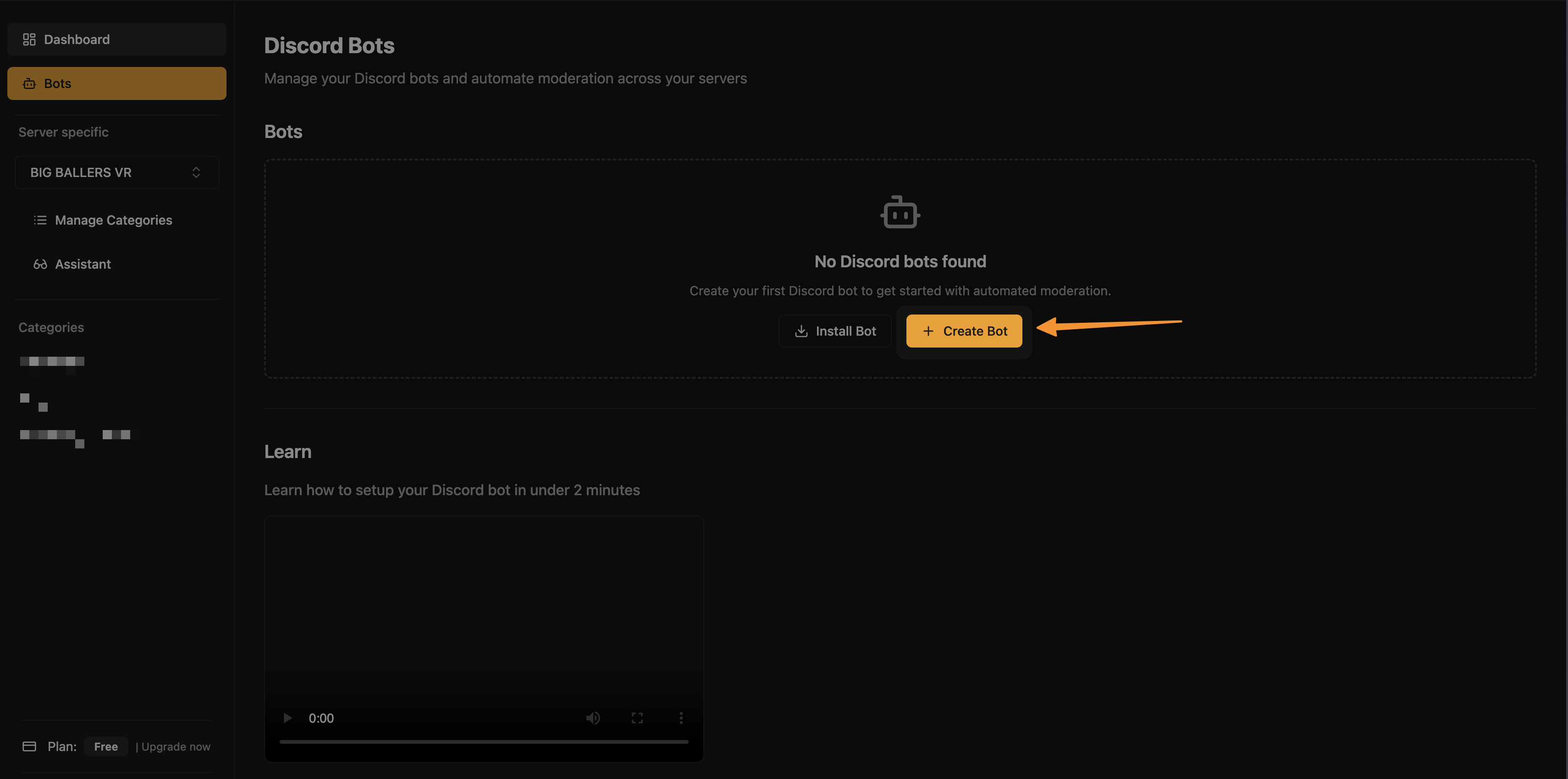
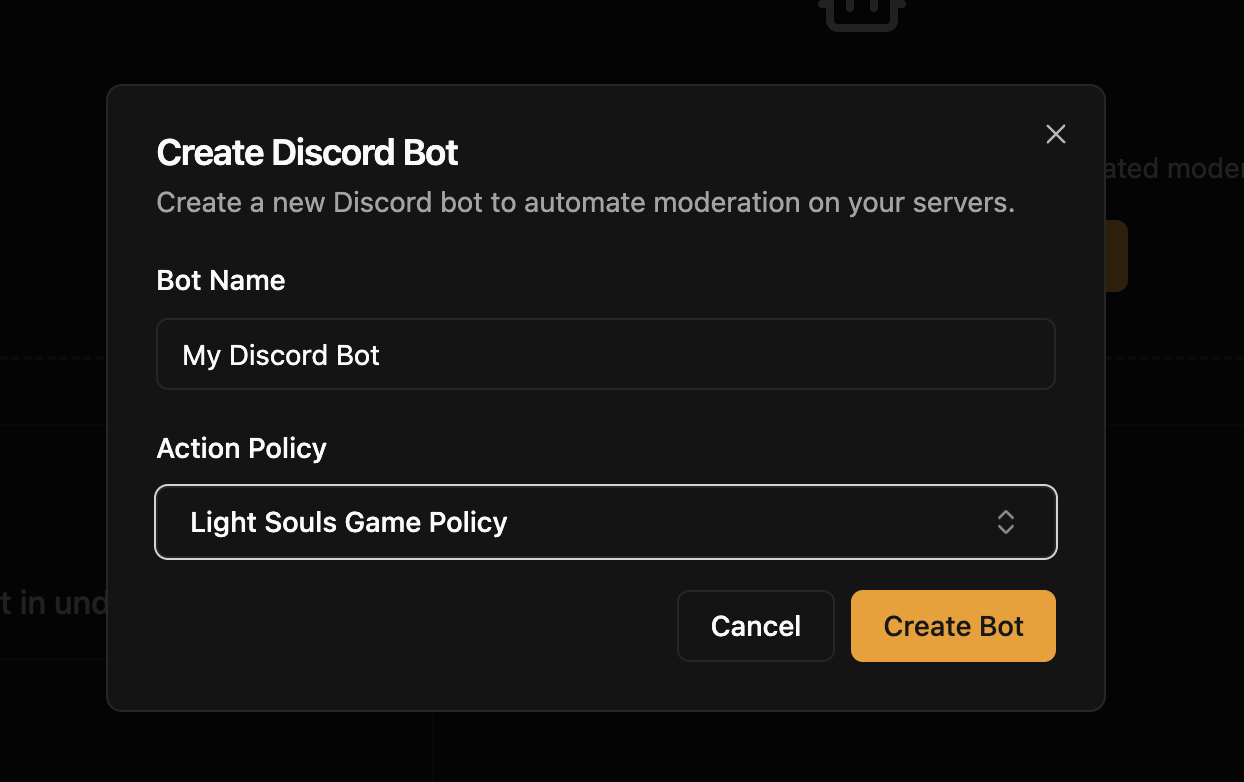
Go to the PlaySafe Dashboard - Discord Bots page. Click Create Bot, then fill in a bot name and select an action policy.
Step 2 - Save Your API Key
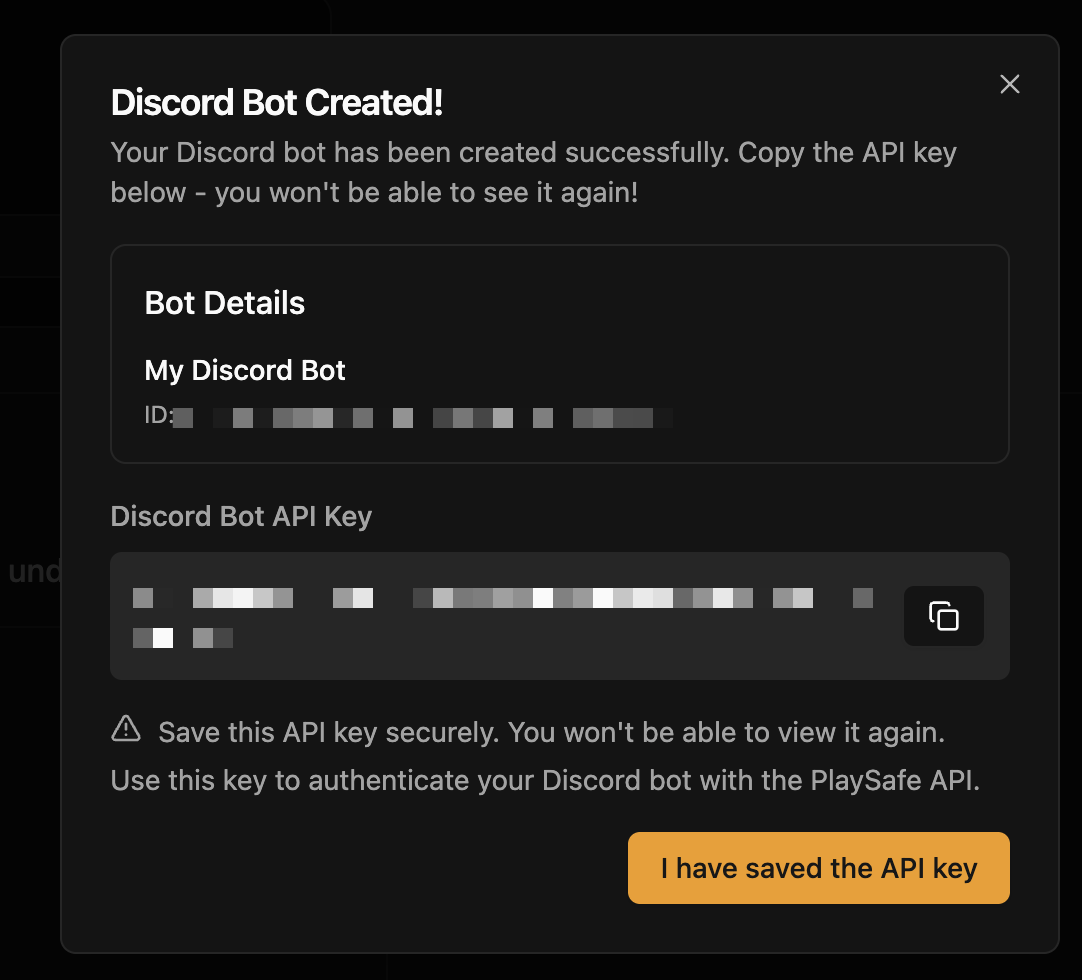
After creation, the dashboard displays your API key once. Copy it and store it somewhere safe - you cannot retrieve it again.
Step 3 - Install the Bot
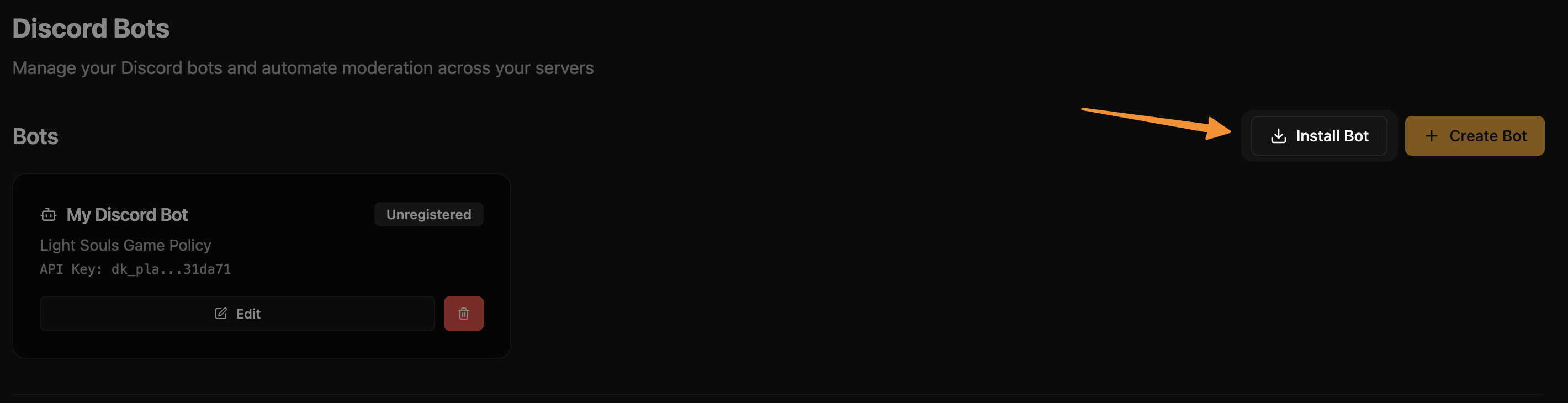
Click Install Bot on the bot card to invite it to your Discord server. Grant the requested permissions when prompted.
Step 4 - Configure Voice Monitoring
Run /setup-voice in any channel where the bot is present. The bot will list your voice channels and provide invite links for listener bots. Each listener bot can monitor one voice channel at a time, so invite as many as you need for simultaneous coverage.
Permissions
The bot uses three permission tiers. Discord's built-in permission system controls who can see and run each command.
Admin
Requires the Manage Server permission. Admin commands handle server-level setup: voice monitoring configuration, channel exclusions, and moderator role management.
See Admin Commands for the full reference.
Moderator
Requires the Ban Members permission. A server admin grants this by running /add-moderator-role to assign the permission to a role. Moderator commands cover banning, warning, forgiving players, and managing ban appeals. Each action maps to a specific action value in your PlaySafe action policies (perma_ban, temp_voice_ban, warning), so the bot enforces whatever rules you have configured there.
If you have configured a webhook URL on your PlaySafe dashboard, all moderator actions will also trigger a webhook event.
See Moderator Commands for the full reference.
Public
Available to all server members with no special permissions. Public commands let players report others, appeal bans, ask the assistant, and access support resources.
See Public Commands for the full reference.